
3D Secondary Animation: Techniques, Tools, and Tips
3D secondary animation is the little extra that makes your animations pop. It’s all about adding those subtle movements, like hair swaying or a scarf fluttering, that follow the main action (primary animation).
While the primary motion handles the big stuff, secondary animation brings realism, depth, and personality to the scene. It’s what makes your work feel alive and immersive, whether you’re working on a film, game, or simulation. Ready to level up your animations? Stick with me, and I’ll walk you through the techniques, tools, and tips you need to nail it.
Basics of 3D Secondary Animation
If you’ve ever noticed a character’s cape swaying after they stop running or their hair bouncing as they turn their head, that’s secondary animation doing its thing. It’s the subtle, extra movements that happen as a result of the main action, and honestly, it’s what takes animations from good to wow.

Key Principles
Now, when you’re diving into secondary animation, there are a few principles you’ve gotta keep in mind. Let me break it down for you:
- Follow-Through and Overlapping Action
Picture this: a character comes to a sudden stop, but their scarf keeps swinging for a moment before settling. That’s follow-through. Now, imagine the same scarf swaying at one end while the other slows down and boom, that’s overlapping action. These little details make things look real and smooth.
- Timing and Weight
Timing is everything. Light stuff like ribbons or paper moves quickly, while heavier things (bags or armor) move slower and feel weighty. Getting this balance right makes all the difference between “meh” and “that’s so cool.”
- Physics-Based Motion
Secondary animation is governed by forces like gravity, inertia, and drag. Understanding how these forces interact helps you craft natural-looking motions. For example, if a character suddenly stops running, their long hair will momentarily continue moving forward before settling.

- Subtlety
Here’s a biggie: don’t overdo it. Too much secondary motion can look… messy. It’s like adding salt to your food; just enough to enhance the flavor, not overpower it.
- Delayed Reactions
Secondary elements usually lag behind the main action. Imagine someone running with a long ponytail; it won’t move the second their body does. Instead, it’ll catch up and then settle back down after they stop. It’s that little delay that makes things feel natural.
>>> Read more: 12 Principles of Animation in Animation Production
Common Applications
Secondary animations have countless applications in 3D projects, from character animations to environmental effects:
- Characters & Accessories: Hair, clothing, and props. A scarf fluttering, earrings bouncing, or even a character’s belly jiggling as they laugh.
- Environmental Effects: Trees swaying, leaves blowing, or even the ripple of water when a character splashes into a pond.
- Creatures & Animals: A cat’s tail flicking or a dog’s ears flopping as they run. For flying creatures, like a dragon or bird, the wing tips might have a slight lag to make them feel more flexible and real.
- Vehicles & Objects: Have you ever seen a car bounce slightly after hitting a bump? Or a chain wobble as a machine grinds to a halt? Yep, that’s secondary animation. It’s all about making objects feel alive and part of the world.
- Stylized or Abstract Animations: If you’re working on something more cartoony or whimsical, secondary motion is where you can really have fun. Exaggerate those bounces and wobbles to give your animation personality and charm.
Secondary animation might seem like a small detail, but trust me, it’s the secret sauce that makes everything feel alive.

>>>Read more: 10 storyboarding tips for creating animation film learnt from Pixar film Coco
Techniques for Creating Secondary Animation
Alright, let’s get into the nitty-gritty of how to actually create secondary animation in your 3D projects. Whether you’re working on a bouncing character, flowing fabric, or swinging props, there are a few techniques you can use to make those extra movements feel natural and polished.
Manual Keyframing
This is the hands-on approach, and while it can be time-consuming, it gives you the most control over your animation.
How It Works: You manually set keyframes for each movement of the secondary element. For example, if you’re animating a character’s ponytail, you’d keyframe the arc and settle the tail at specific points in time.
When to Use: Use this technique when you need precise control, especially for stylized or exaggerated animations where physics alone might not cut it.
Tips:
- Start with the primary motion first; get that locked in.
- Add secondary motion by working in layers. Tweak timing and spacing to create natural overlaps.
- Play with exaggeration if you’re going for a cartoony or stylized vibe.
Physics Simulations
Let’s be real: Sometimes, physics can do the heavy lifting for you. Most 3D software includes tools to simulate realistic movements based on physical forces.
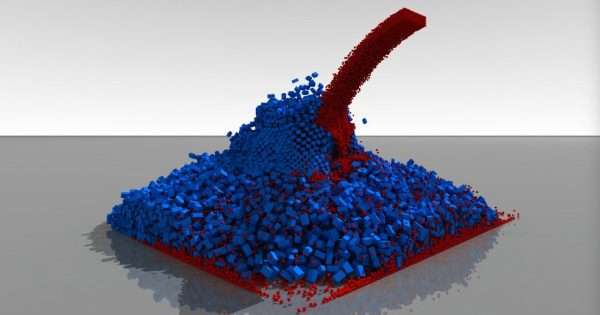
How It Works: Apply physics properties (like gravity, weight, and drag) to your object or rig. The software calculates the movement for you, making things like cloth, hair, or ropes look real without manually animating every frame.
When to Use: Perfect for animations involving complex movements, like flowing dresses, flapping wings, or jiggling objects. It’s also great when you’re short on time and want realistic results quickly.
Tips:
- Experiment with parameters like stiffness, damping, and weight to fine-tune the results.
- Use low-resolution proxies (e.g., simplified meshes) during the setup phase to speed up simulations.
- Bake the simulation once it looks good to lock in the movement and prevent unexpected changes later.
Using Rigging & Constraints
Rigging isn’t just for primary animation because it’s a lifesaver for secondary motion, too.
How It Works: Add bones, controllers, or constraints to your object. For example, you can create a rig for a character’s hair that allows the ends to move freely while staying anchored to the head.
When to Use: Best for objects that require controlled flexibility, like tails, antennae, or flexible props.
Tips:
- Use spring constraints to automatically add bounce and lag to your rigged elements.
- Test your rig with basic movements before diving into detailed animation.
- Keep rigs simple to avoid performance issues during playback.
Blend Animation & Simulations
You don’t have to choose between keyframing and simulations; you can combine them for the best of both worlds.
How It Works: Animate the base movement manually, then layer a physics simulation on top for finer details. For example, you might keyframe a character’s walk, then simulate their scarf to match the motion naturally.
When to Use: Use this for complex scenes where a mix of control and realism is needed.
Tips:
- Keep the base animation simple and let the simulation handle the nuances.
- Blend simulation and keyframed animation using weight sliders to maintain control over how much the simulation influences the motion.
Dynamic Parent-Child Relationships
Sometimes, you need objects to move in relation to one another dynamically. This is where parenting and constraints come into play.

How It Works: Use parent-child relationships or point constraints to make one object follow another. For example, a pendant on a necklace can swing naturally as the character moves.
When to Use: Ideal for props and accessories that need to react to a character’s motion.
Tips:
- Adjust pivot points for realistic movement. A necklace pendulum should pivot from the chain, not its center.
- Use dampers or secondary constraints to mimic weight and drag.
Reference & Observation
Finally, let’s not forget the power of observation. Watching how things move in real life can guide your secondary animation choices.
How It Works: Use video references or real-world observations to study how objects respond to forces. Whether it’s how hair flows in the wind or how a bag swings as someone walks, real-world physics can inspire your animation.
When to Use: Always. Seriously, never skip this step. It’s a game-changer.
Tips:
- Record your own reference footage if you can’t find what you’re looking for.
- Slow down videos to study the subtle timing and overlap.
Tools for 3D Secondary Animation
Choosing the right tools is essential for creating smooth and realistic secondary animation. Here’s a rundown of popular 3D animation software, their features for secondary animation, and helpful plugins to take your animations to the next level.
Blender
Blender is free, open-source, and incredibly powerful for both beginners and professionals. It’s a go-to for many animators due to its versatility and active community support.

Features supporting secondary animation:
- Cloth and Soft Body Simulation: Ideal for animating clothing, hair, and other flexible materials.
- Physics Engine: Includes tools for rigid body, fluid, and particle simulations.
- Grease Pencil: Useful for planning motion and experimenting with secondary animation ideas.
- Graph Editor: Fine-tune keyframes to create natural overlapping action.
Autodesk Maya
A favorite in the animation industry, Maya offers robust tools for creating complex animations with fine control.
Features supporting secondary animation:
- nCloth and nHair: Create realistic cloth and hair simulations.
- Dynamic Rigging: Tools like spring constraints for adding natural motion to objects.
- Bifrost: Advanced fluid simulation system.
- Graph Editor: Precise control over timing and weight in secondary motions.
Cinema 4D
Cinema 4D is known for its user-friendly interface and powerful animation tools, making it ideal for motion graphics and stylized animation.
Features supporting secondary animation:
- Dynamic Tags: Add realistic motion to objects with minimal setup.
- Soft Body and Cloth Simulation: Great for animating flexible materials.
- MoGraph Module: Simplifies procedural animations and secondary effects.
- Hair System: Supports advanced hair and fur animation.
Unreal Engine
Unreal Engine is excellent for real-time animations, especially for games and interactive experiences.

Features supporting secondary animation:
- Chaos Physics System: Real-time simulations for cloth, hair, and destructible objects.
- Animation Blueprints: Create procedural animations that react dynamically to game environments.
- Control Rig: A tool for rigging and animating directly within the engine.
By exploring these tools and plugins, you’ll find what works best for your workflow and creative goals. If you are overwhelmed with these choices, here are my recommendations:
- For Beginners: Start with Blender. It’s free, versatile, and has a huge library of tutorials. Use its built-in simulation tools to explore secondary animation.
- For Industry-Level Work: Maya is the gold standard. Pair it with plugins like Ziva Dynamics or MGear for advanced results.
- For Motion Graphics or Stylized Animations: Cinema 4D shines with its MoGraph tools and simple dynamics systems.
- For Real-Time Projects: Unreal Engine offers cutting-edge tools for real-time secondary animations in games or interactive media.
Step-by-Step Guide: Creating Secondary Animation
Creating secondary animation might seem tricky at first, but breaking it down into manageable steps makes it a fun and rewarding process. Here’s a clear, step-by-step guide to help you nail it.
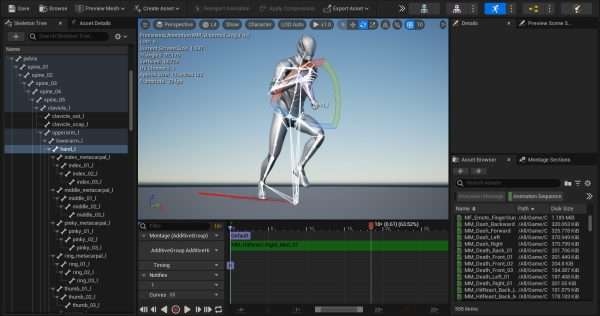
Step 1: Plan the Primary Motion First
Before diving into secondary animation, focus on the main action. Secondary motion is all about responding to the primary movement, so it won’t look natural without a solid base.
- What to Do: Animate your character or object’s main movements (e.g., walking, jumping, waving). Lock these in before moving forward.
- Why It Matters: Secondary animation needs something to “follow.” Without a clear primary action, secondary elements may feel disconnected.
Step 2: Identify Secondary Elements
Now, decide what parts of your character or scene need secondary motion. This could be anything that reacts to the primary movement.
Examples:
- Hair, clothing, tails, or props on a character.
- Environmental elements like leaves, curtains, or water ripples.
- Facial features like jiggly cheeks or subtle eye blinks.
Tip: Watch real-life references or animations to spot natural secondary movements.
>>>Read more: How do the Best Animation Studios use the Squash and Stretch principle?
Step 3: Choose Your Technique
Pick the method that best suits your project: manual keyframing, physics simulation, or a mix of both. Here’s a quick guide:
- Manual Keyframing: Best for stylized or exaggerated animations where you need full control.
- Physics Simulations: Perfect for realistic animations, like flowing cloth or jiggling objects.
- Combination: Start with keyframes for the main motion, then layer simulations for finer details.
Step 4: Animate the Secondary Motion
Here’s where the magic happens. Add the secondary movements layer by layer, ensuring they complement the primary action.
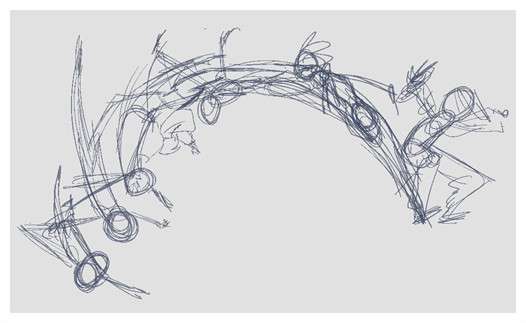
Manual Keyframing Steps:
- Add keyframes for the start and end positions of the secondary element.
- Introduce overlapping motion by offsetting the timing of different parts. For example, a tail tip might move slightly after the base.
- Refine arcs and easing for natural flow.
Physics Simulation Steps:
- Set up the simulation properties for the object (e.g., weight, stiffness, damping).
- Test the simulation with the primary motion to ensure it reacts naturally.
- Tweak parameters like gravity or drag to fine-tune the behavior.
Step 5: Refine Timing & Weight
Secondary animation lives or dies by how believable the timing and weight feel. Spend time tweaking these details:
- Timing: Make sure the secondary motion lags slightly behind the primary action. Too synchronized, and it’ll feel stiff.
- Weight: Adjust the speed and arc of motion based on the material or object. For example, a heavy cloak should move slower than a feather.
Step 6: Test & Iterate
Don’t skip this step because it’s crucial for getting everything just right. Watch your animation at different speeds to catch any awkward movements. Also, fine-tune keyframes, simulation parameters, or timing until everything feels smooth.
Tip: Render quick previews to see how your animation looks in motion.

>>>Read more: How does an Animation Studio use the Anticipation principle?
Step 7: Add Details and Finishing Touches
Now that the basics are done, it’s time to polish. Add subtle motions, like a small flutter of fabric or the bounce of accessories. Then, combine simulation and keyframed elements for a seamless look. Ensure secondary motion matches the tone and style of the animation.
Step 8: Render & Review
Render your animation and give it a final review. Watch closely for anything that feels off or needs a last-minute tweak. If it all looks good. Then, congratulations! You’ve nailed your secondary animation!
To make this process smoother, here is my advice:
- Always study real-world examples or videos for inspiration.
- Focus on one element at a time to avoid getting overwhelmed.
- Play with exaggeration, especially if you’re doing stylized work.
- Fresh eyes can spot issues you might miss.
By following this guide, you’ll create secondary animations that enhance your primary movements and add that professional touch to your 3D projects. The key is patience, practice, and attention to detail!

Challenges in 3D Secondary Animation
Creating 3D secondary animation is an art that comes with its own set of challenges. While it enhances realism and visual appeal, achieving the right balance and quality can be tricky. Here are some common challenges you might encounter:
Over-Exaggeration or Understatement
Secondary motion can easily become too exaggerated, making it look unrealistic, or too subtle, rendering it almost invisible.
- Why It Happens: Lack of reference or misjudgment of timing and weight.
- How to Address It: Study real-life examples and adjust the motion to complement the primary action without overpowering it.
Syncing with Primary Motion
Secondary animation may feel disconnected or out of sync with the main action, breaking the illusion of realism.
- Why It Happens: Poor timing or an imbalance between the two layers of animation.
- How to Address It: Pay close attention to the timing and ensure secondary elements react naturally to the primary motion.
Computational Demands
Physics simulations, especially for complex elements like cloth or hair, can be resource-intensive and slow down your workflow.
- Why It Happens: Simulating large or detailed objects requires significant computational power.
- How to Address It: Use low-resolution proxies during setup and bake simulations to lock in results.
Balancing Realism and Style
Finding the right balance between realistic physics and the creative style of the project can be challenging.
- Why It Happens: Over-reliance on physics simulations or keyframes that don’t match the desired artistic tone.
- How to Address It: Combine simulation with manual tweaks and adjust motion based on the project’s aesthetic.
Handling Complex Interactions
Secondary elements often interact with other objects (e.g., a scarf tangling with a backpack), making the animation harder to control.
- Why It Happens: Simulating multiple interacting elements requires precise setup and testing.
- How to Address It: Use collision detection and constraints in your software, and test the interactions extensively.
Conclusion
Mastering 3D secondary animation is the key to bringing your work to life. From flowing cloth to character quirks, these subtle movements add realism and personality. With the right tools, practice, and attention to real-world motion, you can create animations that truly stand out. Keep experimenting and refining your skills; it’s all about finding the balance that makes your scenes pop. Now, go create something amazing!
This article draws upon information from several online resources. If you believe any content has been improperly attributed or requires correction, please contact us so we can address it promptly.
–
Animost – Vietnam 3D Animation Studio


hello@animost.com

More from the stage
Dec 16, 2025Why Is My Blender Animation Pixelated? A Step-by-Step Fix Guide
Why is my Blender animation pixelated? We break down the real causes and show you how to fix pixelation step by step.
VFX Compositing: The Ultimate Beginner-Friendly Guide
Discover how VFX compositing works with this detailed, beginner-friendly guide. We break down keying, tracking, color correction, and more!
Start a project
Tell us what you need made.
Send us the details and we will come back within one business day with a scope and a price.
Start a project