What Device Do 3D Animators Use? A Beginner’s Guide to Hardware Tools
What device do 3D animators use? 3D animation has become a cornerstone of industries like film, gaming, and marketing, bringing ideas to life with stunning visuals and dynamic storytelling. To meet the complex demands of this craft, animators rely on specialized devices. From powerful hardware to versatile software tools, discover what drives the magic of 3D animation.
What Device Do 3D Animators Use? Essential Devices
You don’t need the fanciest setup to begin; you just need to know what matters most. Here’s a guide to help you understand the devices that 3D animators use and what makes them so essential.

Computers
- Desktops: The Powerhouses
Desktops are the go-to for most animators because they pack serious power. You’ll want something with a strong processor (think Intel i7/i9 or AMD Ryzen 7/9), a great graphics card like an NVIDIA RTX, and plenty of RAM, at least 16GB to start. Solid State Drives (SSDs) are a must for faster load times, so try to get a mix of SSD and regular storage (HDD) if you can.
What’s awesome about desktops is how easy they are to upgrade. Start with a decent setup and add better parts as you grow into bigger projects.
- Laptops: Portable Power
If you’re always on the move or working in different places, a high-performance laptop is your best friend. Look for something with a dedicated GPU (like NVIDIA GeForce RTX 3060 or higher), a fast processor, and at least 16GB of RAM. Gaming laptops are a solid choice; they’re powerful, portable, and usually have great cooling systems.
Sure, laptops might not match desktops for sheer power, but they’re a great starting point, especially for students or beginners working in smaller spaces.

>>> Read more: What Animation Studio Equipment Do You Need for Your Business?
Tablets & Drawing Monitors
- Graphics Tablets (No Screen)
These are perfect for sketching and texturing, giving you the precision you need without breaking the bank. Brands like Wacom and Huion are super popular. Wacom Intuos is great for beginners because it’s reliable and easy to use. Huion is a solid budget-friendly option, offering similar features.
They don’t have screens, so you’ll need to look at your computer monitor while drawing, but that’s easy to get used to.
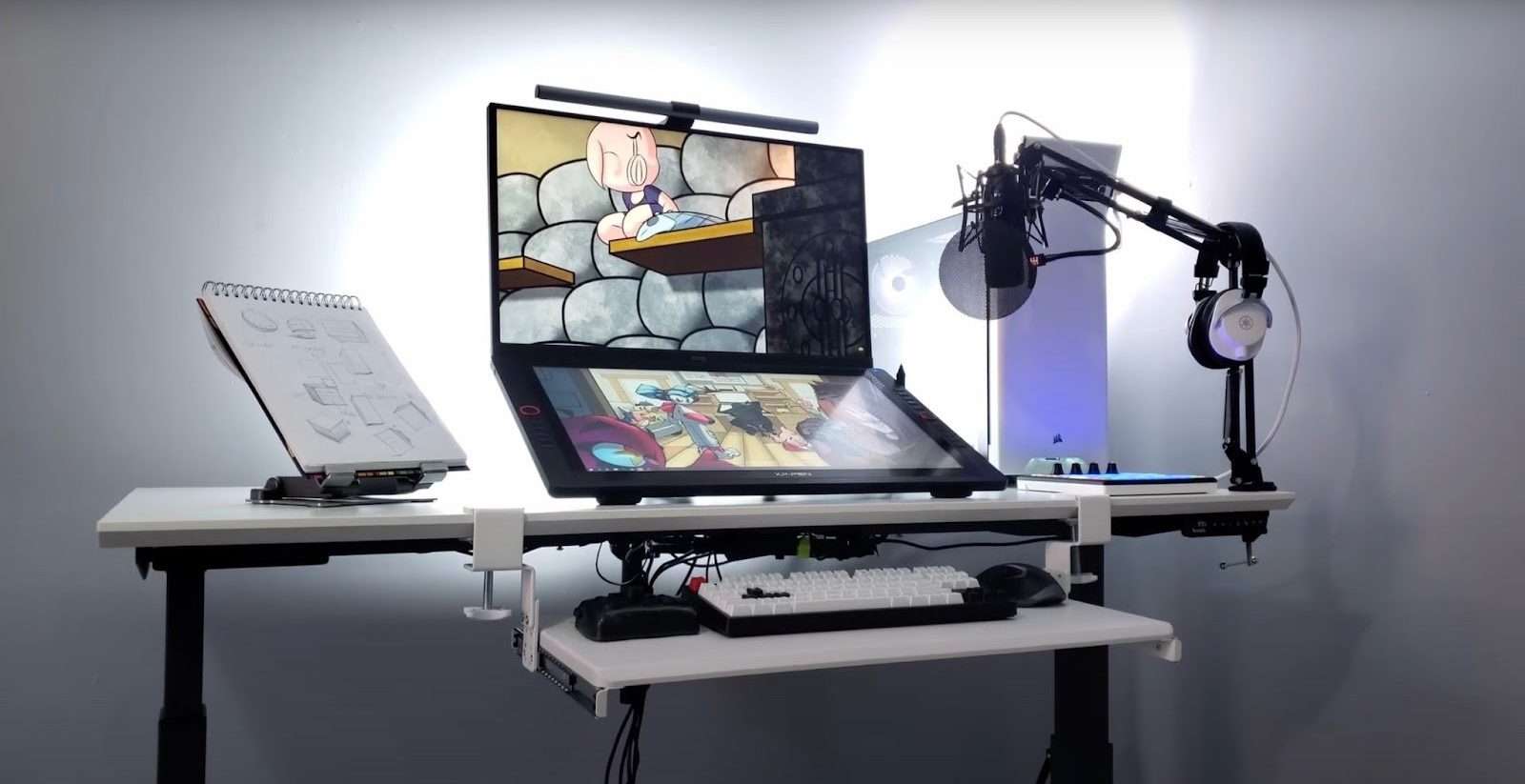
- Pen Displays (Screen Tablets)
If you want to draw directly on a screen, pen displays are the way to go. They’re super intuitive and feel like traditional drawing. Wacom Cintiq is the gold standard, but it’s a bit pricey. For something more affordable, check out XP-Pen or Huion Kamvas; they’re awesome for their price and still deliver high quality.
The big thing to watch out for is desk space. These tablets are larger, and you’ll want a comfy setup to avoid neck and wrist strain.

>>>Read more: How to Speed up Animation Working Time – Ultimate Guide
VR & AR Devices
- Virtual Reality (VR)
VR is a game-changer if you want to explore your 3D creations in an immersive way. It’s not essential for beginners, but it’s fun to experiment with tools like Oculus Rift or HTC Vive. Apps let you sculpt or animate in 3D space, which can feel super futuristic.
- Augmented Reality (AR)
AR is more niche but useful if you’re creating models that need to interact with the real world, like in product design or architecture. Devices like Microsoft HoloLens are amazing but pricey, so it’s better to explore AR with your phone or tablet first.
If you’re just starting, don’t stress about buying the fanciest gear. A mid-range desktop or laptop paired with a basic drawing tablet (like Wacom Intuos) is enough to learn the ropes.

>>>Read more:
Software Integration with Devices
Your devices need to work seamlessly with the software you use to bring your creations to life. Software integration ensures that your hardware’s performance matches the demands of animation tools, making your workflow smooth and efficient.
Most 3D animation software is designed to perform complex tasks like modeling, rigging, rendering, and animation. Each software has its own requirements for hardware, which can significantly impact your device choice.
Popular 3D Animation Software:
- Blender: Free and open-source, Blender is great for beginners and professionals. It supports most hardware configurations, but high-end GPUs improve rendering speed.
- Autodesk Maya: An industry standard for 3D animation. Maya benefits from powerful CPUs and GPUs, especially for tasks like physics simulations and rendering.
- Cinema 4D: Known for its user-friendly interface, this software works well with both mid-range and high-end setups.
- Unreal Engine: Often used for animation and virtual production. Requires a robust GPU for real-time rendering.
For your software to communicate effectively with your devices, keeping your drivers up-to-date is crucial. GPU drivers, in particular, are frequently updated to improve compatibility with 3D animation tools and boost performance.

Besides, cloud-based tools are becoming increasingly popular in 3D animation. These services allow you to offload rendering tasks to powerful servers, reducing the strain on your local hardware. Popular cloud services include:
- Blender Render Farm: Affordable and supports Blender projects.
- Autodesk Cloud Rendering: Speeds up renders for Maya users.
- RenderMan On-Demand: Industry-grade rendering for high-end projects.
Cloud integration is particularly helpful if your hardware is on the lower end and struggles with complex renders.
Before buying hardware, always check the software requirements. Most software providers list recommended and minimum hardware specs on their websites. Make sure your chosen devices exceed the minimum requirements for a smoother experience.
>>> Read more: Is Unreal Engine Good for Mobile Games? 8 Reasons To Use
Additional Hardware Enhancements
Once you have your core setup (computer, tablet, and software), adding a few extra tools can elevate your workflow. These enhancements don’t just make your work faster; they also improve efficiency and comfort, making long hours of animating much easier.

External Storage
Animation files can be massive, especially when dealing with high-quality textures and renders. External storage helps keep your system running smoothly while giving you plenty of space for backups and file transfers.
Solid State Drives (SSDs) like the Samsung T7 are great for quick access to files, while larger Hard Disk Drives (HDDs) like the Seagate Backup Plus are perfect for archiving finished projects. If you’re actively working on a file, an SSD is your best bet due to its speed.
External GPUs (eGPUs)
If your laptop or desktop is struggling with rendering, an external GPU can give it a powerful boost without needing a full system upgrade. eGPUs, like the Razer Core X or Blackmagic eGPU, house high-performance graphics cards that connect to your device via Thunderbolt 3. This is especially useful for laptops that might not have room for a powerful built-in GPU. Make sure your system supports eGPUs before diving in, as they can be pricey.

Input Devices
A 3D mouse, like the 3Dconnexion SpaceMouse, can transform the way you navigate 3D environments, letting you zoom, pan, and rotate models with ease. For everyday use, mechanical keyboards with programmable keys and ergonomic mice make a big difference during long animation sessions. They improve productivity while reducing hand strain, ensuring you stay comfortable.
Monitors
A high-quality monitor is crucial for seeing textures, colors, and details accurately. A 4K monitor, like those from the Dell UltraSharp or LG UltraFine series, offers sharp visuals. Look for monitors with high color accuracy (supporting sRGB or Adobe RGB) to ensure your work looks consistent across devices. Size matters, too; a 27-inch monitor hits the sweet spot between screen space and desk usability.
Ergonomic Enhancements
Sitting for hours can take a toll on your body, so investing in ergonomic tools is a must. A height-adjustable desk lets you switch between sitting and standing, reducing fatigue. Pair it with a supportive chair to keep your back comfortable. Small additions like wrist rests and monitor stands help you maintain good posture and avoid strain during long hours of work.
Sound Tools
If your animations include sound or voiceovers, a good audio setup is invaluable. High-quality headphones like the Audio-Technica ATH-M50x or Sony WH-1000XM5 offer clear sound for editing. For desktop setups, speakers like the KRK Rokit series provide excellent audio quality, perfect for checking sound design.
Wrap Up – What Device Do 3D Animators Use?
Getting into 3D animation is an exciting journey, and having the right gear can make it so much easier. Start with the basics, a solid computer, maybe a pen tablet, and build from there as you learn and grow. The tools are important, but your creativity and practice are what really bring your ideas to life. With the right setup and a little patience, you’ll be creating amazing 3D animations in no time!
Frequently Asked Questions (FAQs)
What is the best computer for 3D animation beginners?
A mid-range desktop with an Intel i7 or AMD Ryzen 5 processor, 16GB RAM, and an NVIDIA RTX 3060 GPU is ideal for beginners. It’s powerful enough for learning 3D animation while being affordable and upgradable as skills and project demands grow.
Do I need a pen tablet for 3D animation?
A pen tablet isn’t mandatory but highly recommended. It provides precision and natural control for texturing, sculpting, and creating 2D concepts. Beginners can start with budget-friendly models like Wacom Intuos, which are great for learning and significantly improve workflow.
How does a 3D mouse help in animation work?
A 3D mouse enhances navigation in 3D environments, allowing smooth, intuitive control of rotations, zooms, and pans. It frees your primary mouse for modeling or animating tasks, improving efficiency and making interactions with complex scenes easier, especially for advanced workflows.
Can laptops handle complex 3D animations?
Yes, high-performance laptops with dedicated GPUs (e.g., NVIDIA RTX 3060 or higher), 16GB+ RAM, and fast processors can handle complex animations. However, rendering large scenes may still strain laptops, so external GPUs or cloud rendering can provide extra support.
What role does VR play in modern 3D animation?
VR allows animators to interact with 3D models in immersive environments, enabling intuitive sculpting, real-time adjustments, and virtual scene exploration. It’s particularly useful for virtual production, character creation, and collaborative design workflows, though it’s still an optional tool for most projects.
–
Animost – Vietnam 3D Animation Studio


hello@animost.com

More from the stage
Sep 15, 2026Behind the Scenes of HOPE Na Hong-jin Sci-Fi Action with Motion Capture
If you love wild action movies, high-stakes science fiction, and cinema that keeps your heart pounding, South Korean filmmaker Na Hong-jin’s latest project, HOPE, needs to…
Do I Own the Copyright to AI-Generated Animation?
Do you own the copyright to AI-generated animation? Learn how AI, human creativity, and platform rules affect ownership and commercial rights.
Start a project
Tell us what you need made.
Send us the details and we will come back within one business day with a scope and a price.
Start a project