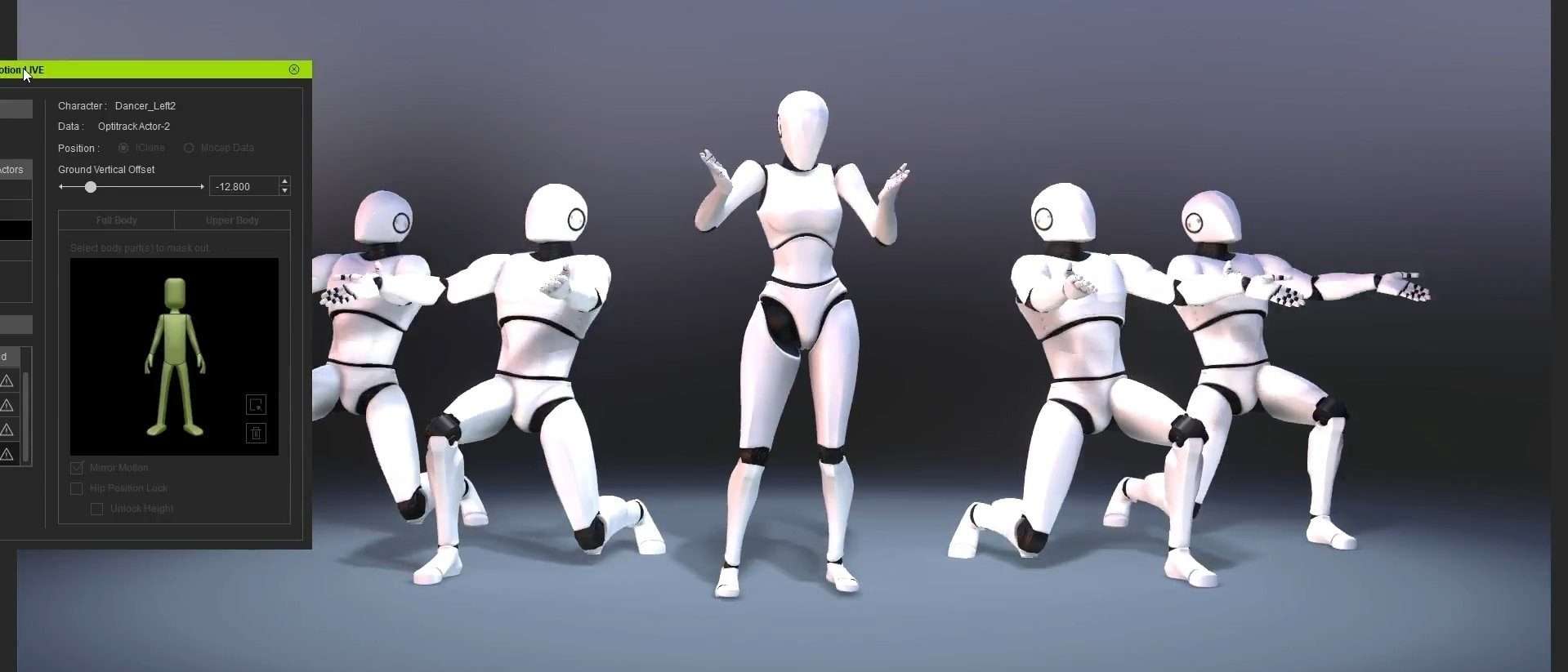
Mocap Cleanup and Editing: Transform Raw Data into Stunning Animations
Motion capture, or Mocap, is a way to record real-world movements and turn them into digital animations, making it a game-changer for movies, games, and more. But raw Mocap data isn’t perfect and can be messy, with jitters or gaps that need fixing. That’s why we need Mocap cleanup and edit.
By smoothing out the rough spots and tweaking the motion to fit your project, you can turn raw captures into polished animations that shine. Let’s dive into how you can make Mocap work its magic!
Understanding Raw Mocap Data
Raw Mocap data is rarely perfect. It captures fine details like subtle gestures, but even the best equipment can produce errors. You might see noise or jitter, which makes motions look shaky, or marker swapping, where your system confuses one body part for another. Sometimes markers get blocked, leaving missing data that needs patching. And popping, where a joint suddenly jumps, can break the illusion of smooth movement.

I’ve found these issues often arise from hardware limits, tricky environments, or the performer’s motions. It might feel frustrating, but if you catch these problems early, you can spend your time fixing real concerns instead of chasing your tail. That’s how you’ll ensure your final animation feels natural and believable.
Tools and Software for Mocap Cleanup and Edit
The right software not only streamlines your workflow but also ensures that your final animation is smooth, realistic, and ready for production. Let’s dive into some of the most popular tools and their features.
- Autodesk MotionBuilder: MotionBuilder is a powerhouse for Mocap editing. It offers advanced tools for retargeting, blending, and refining animations. Its real-time capabilities make it ideal for interactive projects, like video games or VR. This guide gives details about motion capture gaming, check it out!
- Blender: Blender is a free, open-source option that’s surprisingly robust for Mocap work. Its animation editing features, including graph editors and keyframe manipulation, make it a favorite for budget-conscious creators.
- Maya (with Plugins): Maya, combined with plugins like Rokoko Studio or HumanIK, offers powerful tools for cleaning, retargeting, and customizing animations. It’s a go-to for professionals in film and high-end gaming.
- iClone by Reallusion: iClone is user-friendly and integrates well with Character Creator. It simplifies retargeting and cleanup, making it great for beginners or small studios.
- Rokoko Studio: Rokoko specializes in streamlining the Mocap process, from capture to editing. It’s particularly useful for creators using Rokoko hardware like Smartsuits.
Your choice depends on your project’s needs and your experience level. If you’re just starting out, free tools like Blender or beginner-friendly options like iClone are great. For professionals tackling complex projects, industry standards like MotionBuilder and Maya offer the depth and flexibility you’ll need.

>>>Read more: Why Use Unreal Engine Real-Time Motion Capture? (with Examples)
Steps in Mocap Cleanup
Cleaning up Mocap data is all about taking something raw and turning it into something smooth and realistic. The process may seem a bit overwhelming at first, but breaking it down into steps makes it manageable and even enjoyable. Let’s dive into how it’s done.
Step 1: Importing Raw Data
This is where you load your raw Mocap file into your editing software. Make sure the format matches, like BVH or FBX, and check that your character rig or skeleton lines up properly. Take a quick look at the animation by scrubbing through it; this helps you spot obvious problems like jittery movements or missing markers.
>>>Read more: What Does A Motion Capture Artist Do? How To Become One?
Step 2: Identifying Problem Areas
Next, figure out what needs fixing. Watch the animation carefully. Are there weird jumps? Missing parts? Maybe something just feels off? Use tools like motion graphs to highlight oddities, like spikes or gaps in the data. Many programs let you add notes, so mark areas that need attention.

Step 3: Correcting Noise and Jitter
This is super common in Mocap data, and smoothing it out makes a world of difference. Use built-in filters to clean up small shakes or open the motion curves and tweak them manually if you want more control. Some newer tools even use AI to handle this automatically; pretty cool, right?
Step 4: Filling Missing Data
Gaps happen when markers aren’t picked up, and they can mess with the animation. Most software can interpolate missing points, but for trickier sections, you might have to manually adjust joints or markers. If you’ve got another take of the same motion, you can borrow data from there.
Step 5: Marker Reconstruction
Sometimes the system confuses which marker belongs to which body part. You can manually reassign them, or if your software has auto-detection features, let it do the heavy lifting. If this keeps happening, it might be time to check your marker setup and hardware calibration.

Steps in Mocap Editing
Editing Mocap data is taking your cleaned-up motion and making it fit perfectly with your project’s needs, whether that’s tweaking movements, adding personality, or ensuring everything flows seamlessly. Let’s break it down step by step.
Step 1: Adjusting Movements
Start by fine-tuning the overall motion. Maybe the character’s pose is a bit off, or the timing of a punch feels too slow. Small adjustments here can make a big difference. Don’t forget to add those little touches that make movements feel real, like a slight weight shift when walking or leaning into a turn.
Step 2: Adding Keyframes for Precision
Sometimes, the Mocap data gets close, but you’ll need to step in for precision. Tweak keyframes at important moments, like making sure a foot plants firmly or a hand reaches just right. If you need extra control, head to the graph editor and smooth out those motion curves.

Step 3: Retargeting
If you’re applying the Mocap to a character that’s taller, shorter, or built differently, you’ll need to retarget the motion to fit. Most tools make this pretty straightforward, but you might need to tweak things like arm or leg movements to make them look natural. And if your project is more stylized, now’s the time to exaggerate movements to match the vibe.
Step 4: Blending and Looping Animations
If you’re working with multiple clips, like a character going from walking to running, use blending tools to make the transition smooth. For repetitive motions, like a walk cycle, ensure the start and end frames connect seamlessly. Nobody wants a jerky loop!
Step 5: Customizing Movements
This is where you bring the character to life. Add personality by tweaking their walk, gestures, or posture. A confident character might walk with their chest out, while a shy one might hunch over a bit. Don’t forget props! Adjust the motion so it looks like they’re gripping that sword or holding that coffee cup.

Little details can make a big difference. Think about how hair, clothing, or accessories should move. Maybe the character’s coat flutters as they run, or their hand lingers after a wave. These subtle touches make everything feel more alive.
Once you’ve got everything looking good, test it out in its final environment. Does it sync well with props? Does it behave correctly in a game engine or scene? If there are multiple characters, check that their movements don’t collide or feel out of sync.
Finally, review and polish. Play the animation back at different speeds to catch anything you missed. Tweak the little things (like hand or finger positions) and make sure everything fits with the rest of the project. Once it all flows perfectly, you’re good to go!
Tips for Efficient Mocap Cleanup and Edit
Mocap cleanup and edit can be time-consuming, but with the right strategies, you can streamline the process and achieve polished, professional results. Here’s a concise list of tips to help you work more efficiently:
- Plan During Capture: Use quality hardware, proper lighting, and well-placed markers to reduce post-production issues.
- Stay Organized: Label files clearly and use consistent naming conventions to save time.
- Tackle Big Issues First: Address missing markers, jitter, and major alignment problems before refining details.
- Use Automation: Leverage tools like noise reduction filters, AI retargeting, and interpolation for quick fixes.
- Work with Motion Graphs: Spot and correct irregularities by adjusting curves for smoother transitions.
- Test Regularly: Play animations at different speeds to catch errors early in the process.
- Blend and Loop Seamlessly: Ensure smooth transitions between clips and perfect alignment for loops.
- Add Personality: Customize motions to reflect your character’s style or personality.
- Stay Updated: Learn new software features and plugins to enhance your workflow.
Following these tips will save time, reduce frustration, and create stunning animations efficiently.
Wrap Up
Mocap cleanup and edit might take some time, but turning raw captures into smooth, polished animations is worth it. By fixing things like jitter, missing pieces, or awkward movements, and tweaking the motion to fit your project, you can bring your characters to life. With the right tools, patience, and creative touches, you’ll transform raw data into animations that look amazing and feel just right.
This article draws upon information from several online resources. If you believe any content has been improperly attributed or requires correction, please contact us so we can address it promptly.
–
Animost – Vietnam 3D Animation Studio


hello@animost.com

More from the stage
Dec 16, 2025Why Is My Blender Animation Pixelated? A Step-by-Step Fix Guide
Why is my Blender animation pixelated? We break down the real causes and show you how to fix pixelation step by step.
VFX Compositing: The Ultimate Beginner-Friendly Guide
Discover how VFX compositing works with this detailed, beginner-friendly guide. We break down keying, tracking, color correction, and more!
Start a project
Tell us what you need made.
Send us the details and we will come back within one business day with a scope and a price.
Start a project