Motion Capture Animation Blender: A Complete Guide
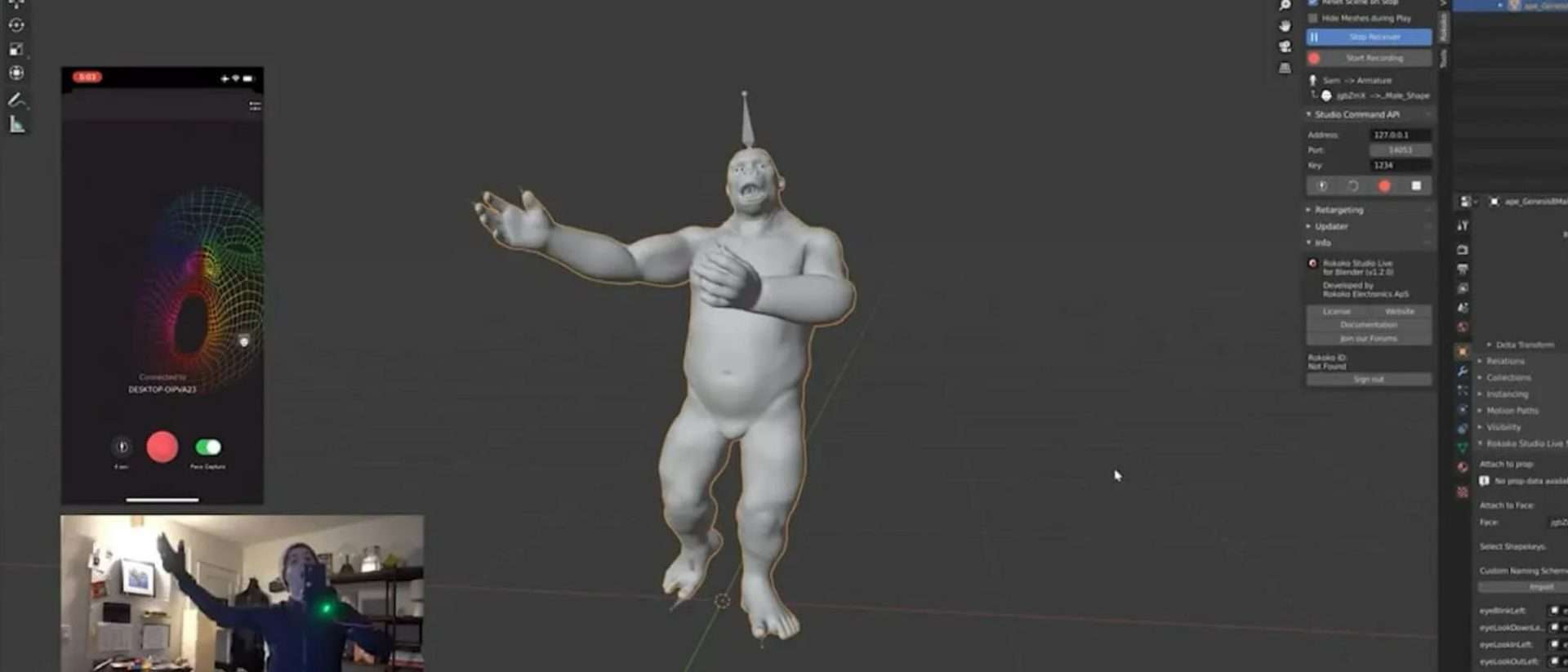
Motion capture animation in Blender is a great way to add realistic movements to your 3D characters without all the manual work.
With motion capture, Blender lets you take real-world actions and apply them directly to your digital models. It saves tons of time compared to animating everything by hand. Plus, since Blender is free and packed with handy tools and add-ons, it’s perfect for animating for games, movies, or just your fun projects.
Setting Up Blender for Motion Capture
Before you start, you need to make sure Blender is all set up to handle MoCap data. This means checking if you’ve got the latest version and installing some handy add-ons, such as:
- Auto-Rig Pro (highly recommended) makes retargeting MoCap data onto your custom rigs super simple.
- Rokoko Studio Live Add-On lets you stream MoCap data in real-time directly into Blender, perfect if you’ve got a Rokoko suit.
- MakeWalk helps you import and work with BVH files, a common MoCap format.
Now that Blender’s ready, let’s work with motion capture data!
Step-by-Step Guide to Using Motion Capture Animation Blender
Now, this guide will walk you through the entire process—from capturing data to importing, retargeting, and refining the animation in Blender.
Step 1: Recording Motion Capture Data
The first step in using MoCap with Blender is, of course, capturing the data. This can be done using various hardware solutions, such as motion capture suits, cameras, or even simpler DIY methods depending on your setup.

Once you have your data, it needs to be in a format that Blender can import, typically BVH or FBX files.
Using MoCap Hardware
- MoCap Suits: If you have access to a motion capture suit like Rokoko, Perception Neuron, or Xsens, record your motion using the suit. These suits track body movement and export the data in a compatible format (BVH or FBX).
- MoCap Cameras: Systems like OptiTrack or Kinect use cameras to track movement. After recording, export the data similarly.
Exporting Data for Blender
- Formats: Blender works best with BVH or FBX files, which are standard for motion capture. Make sure to export your MoCap data in one of these formats from your capture software.
- Organizing Files: Save the files in a clearly labeled folder, especially if you’re capturing multiple sequences, to avoid confusion when importing into Blender.
Step 2: Importing Motion Capture Data into Blender
Once you have your motion capture data ready, it’s time to bring it into Blender. Here’s how to import the data in both BVH and FBX formats.

Importing BVH Files
BVH (BioVision Hierarchy) is one of the most common formats for MoCap data, and Blender natively supports it.
- In Blender, go to File > Import > Motion Capture (.bvh).
- Select the BVH file you saved earlier, and click Import.
- Your motion capture skeleton (armature) will appear in the 3D viewport.
MoCap skeletons might not be at the correct scale or orientation, so you might need to adjust these. Use S for scaling and R for rotating until the skeleton fits the size of your rigged character.
>>> Read more: FX and animation studios increasing favor for virtual production and workstations
Importing FBX Files
FBX (Filmbox) is another format often used for MoCap data and can also store complex animations, including facial and finger movements.
- Go to File > Import > FBX (.fbx).
- Find the FBX file you want to import and select it.
- When importing FBX files, Blender will automatically bring in both the skeleton and the motion data.
Then, check the 3D viewport to make sure the skeleton is properly positioned. You might need to adjust the scale and alignment here too.
>>> Read more: How To Build A Blender Real Time Animation Pipeline
Step 3: Rigging and Retargeting in Blender
Once you’ve imported your MoCap skeleton, the next step is to apply this motion data to your custom character. This is known as retargeting, and it ensures that your character’s rig follows the movement of the MoCap skeleton.

Aligning the Skeletons
Make sure the motion capture skeleton (MoCap armature) and your character rig are on the same scale. If the MoCap skeleton is much smaller or larger, it will result in incorrect retargeting.
Also, align the root bone of your character’s rig to the root bone of the MoCap skeleton. This is usually done by moving the MoCap skeleton into the same position as the character rig.
>>>Read more: Important things to know when implementing Motion Capture with a budget
Retargeting Using Auto-Rig Pro (Recommended)
If you’re using Auto-Rig Pro, retargeting is straightforward:
- Select both the MoCap skeleton and your character rig.
- Open Auto-Rig Pro’s retargeting panel and follow the on-screen steps to map the MoCap bones to your character’s rig.
- Adjust the bone constraints if needed to get a smooth movement transfer.
Tips:
- Make sure you’ve applied all transformations (Ctrl + A > All Transforms) to your rig and skeleton before retargeting.
- You may need to adjust the MoCap skeleton’s root bone to ensure the movement matches your character’s scale and proportions.
Manual Retargeting in Blender
If you’re not using Auto-Rig Pro, you can still manually retarget the MoCap data:
- Use Blender’s bone constraints (such as Copy Location and Copy Rotation) to connect the motion capture bones to your character’s bones.
- Manually adjust the constraints and fine-tune the rotation and translation to make sure the animation looks right.
To simplify manual retargeting, make sure the MoCap skeleton’s bone names match those of your character’s rig. If they don’t, you can manually rename the bones in the Armature tab.
>>>Read more: The top ten free 3D apps for a 3D animation studio
Step 4: Refining and Animating
Now that your MoCap data is driving your character, you might notice some issues like jittery movements or excessive keyframes. Here’s how to clean up and refine the animation.

Editing Keyframes in the Graph Editor
Motion capture files often generate tons of keyframes, making it hard to edit the animation. You can simplify the animation by cleaning up these keyframes.
- Go to the Graph Editor and select the bones that need cleaning.
- Use the Simplify Curves option to reduce the number of keyframes without losing too much motion detail.
- You can manually adjust the animation curves to smooth out jittery movements by selecting individual keyframes and adjusting their positions.
Using Blender’s NLA Editor for Motion Layers
Blender’s Non-Linear Animation (NLA) Editor is great for organizing and editing complex animations:
- Create action strips for each animation (like walk, run, jump).
- Combine MoCap data with additional keyframe animation, allowing you to blend different motions smoothly.
- Adjust the weight and influence of different animation layers to create more natural movement.
For example, if you want to add hand or facial animations on top of the body MoCap, use the NLA editor to layer these animations together.
Correcting Jitter or Noise in MoCap Data
If your MoCap data is jittery, especially around joints like the hands or feet, you can use Blender’s Smooth Keys function in the Graph Editor to reduce the noise.
For specific problem areas, go into the Pose Mode and manually adjust the position or rotation of individual bones at certain keyframes to fix any awkward movements.
Step 5: Rendering the Final Animation

Once you’re happy with your MoCap animation, it’s time to render it or export it for use in games or other projects. But before rendering, make sure your scene is optimized. Disable any unnecessary objects or lights that could slow down the render.
- Setting Up Render Settings: Choose the resolution and frame rate that best suits your project.
- Export for Games or Other Software: If you’re exporting the animation for use in a game engine like Unity or Unreal, you can export your character and animation as an FBX file by going to File > Export > FBX.
- Render for Cinematics: If your animation is for a video, set up your render options and export the frames as images or a video file.
Common Issues in Motion Capture and Blender
From importing issues to rigging mismatches, several common problems can arise during the workflow. Here’s a detailed look at some of the most frequent issues you might encounter:
Importing Issues
One of the first challenges you may face when using MoCap in Blender is simply getting the data imported correctly. Whether you’re working with BVH or FBX files, certain issues can pop up that prevent smooth integration into your project.

Incorrect File Formats
Not all MoCap formats are supported by Blender out of the box. Some users may try to import data in formats like C3D or AMC, which Blender doesn’t natively support.
Solution:
Convert your motion capture files to BVH or FBX, which are the most compatible formats for Blender. Many MoCap software tools, like Rokoko Studio or MotionBuilder, allow you to export in these formats. If your software doesn’t support these exports, look for a file conversion tool like Blender’s internal add-ons or third-party converters.
BVH File Import Problems
Sometimes, when importing BVH files, the skeleton might appear distorted, misaligned, or incorrectly scaled.
Solution:
- First, check the scale of the BVH file. MoCap data often comes in at unexpected sizes, so you may need to adjust the scale after importing by selecting the skeleton and using the S key to resize.
- If the skeleton is misaligned, try adjusting the global rotation by selecting the armature and rotating it (R key) to fit your scene’s orientation. This usually happens because different systems record with different coordinate axes (Z-up vs. Y-up).
Pro tip: When importing, adjust the import settings to match the expected orientation (especially if your BVH system uses different axis conventions).
FBX Import Problems
FBX files can cause issues, particularly when they don’t include the correct hierarchy, have multiple armatures, or lack animation data.
Solution:
- Ensure the FBX file includes the skeleton and the animation. You can do this by opening the FBX in a third-party tool, like Autodesk’s FBX Review, to check the contents before importing it into Blender.
- If Blender doesn’t import the animation, try re-exporting the FBX file from your MoCap software with different export settings, ensuring that animation data is embedded.
Performance Optimization
Motion capture data is heavy, especially when dealing with long sequences or detailed animations with many keyframes. These performance issues can slow down your workflow significantly.

Solution:
- Simplify Keyframes: MoCap data often creates keyframes on every single frame, which can make the animation heavy. Use Blender’s Graph Editor to simplify curves by selecting the keyframes and using Simplify F-Curves to reduce unnecessary keyframe data.
- Viewport Simplification: Enable Simplify in the Render Properties panel to reduce the complexity of the scene while working on it. Lowering the subdivision levels or turning off extra viewport effects like shadows can help.
With these solutions, you’ll be well-prepared to handle most MoCap-related issues in Blender, allowing you to focus on creating smooth, dynamic animations.
Conclusion
So, to wrap things up, motion capture animation in Blender is a fantastic way to bring your 3D characters to life with realistic movements.
Instead of spending hours manually animating, you can use real-world motion and apply it directly to your digital models, saving you tons of time and effort. Plus, Blender is free and packed with useful add-ons and tools, making the whole process smoother.
Contact Animost if you have any issues in making motion capture animation!
This article draws upon information from several online resources. If you believe any content has been improperly attributed or requires correction, please contact us so we can address it promptly.
–
Animost – Vietnam 3D Animation Studio


hello@animost.com

More from the stage
Dec 16, 2025Why Is My Blender Animation Pixelated? A Step-by-Step Fix Guide
Why is my Blender animation pixelated? We break down the real causes and show you how to fix pixelation step by step.
VFX Compositing: The Ultimate Beginner-Friendly Guide
Discover how VFX compositing works with this detailed, beginner-friendly guide. We break down keying, tracking, color correction, and more!
Start a project
Tell us what you need made.
Send us the details and we will come back within one business day with a scope and a price.
Start a project